
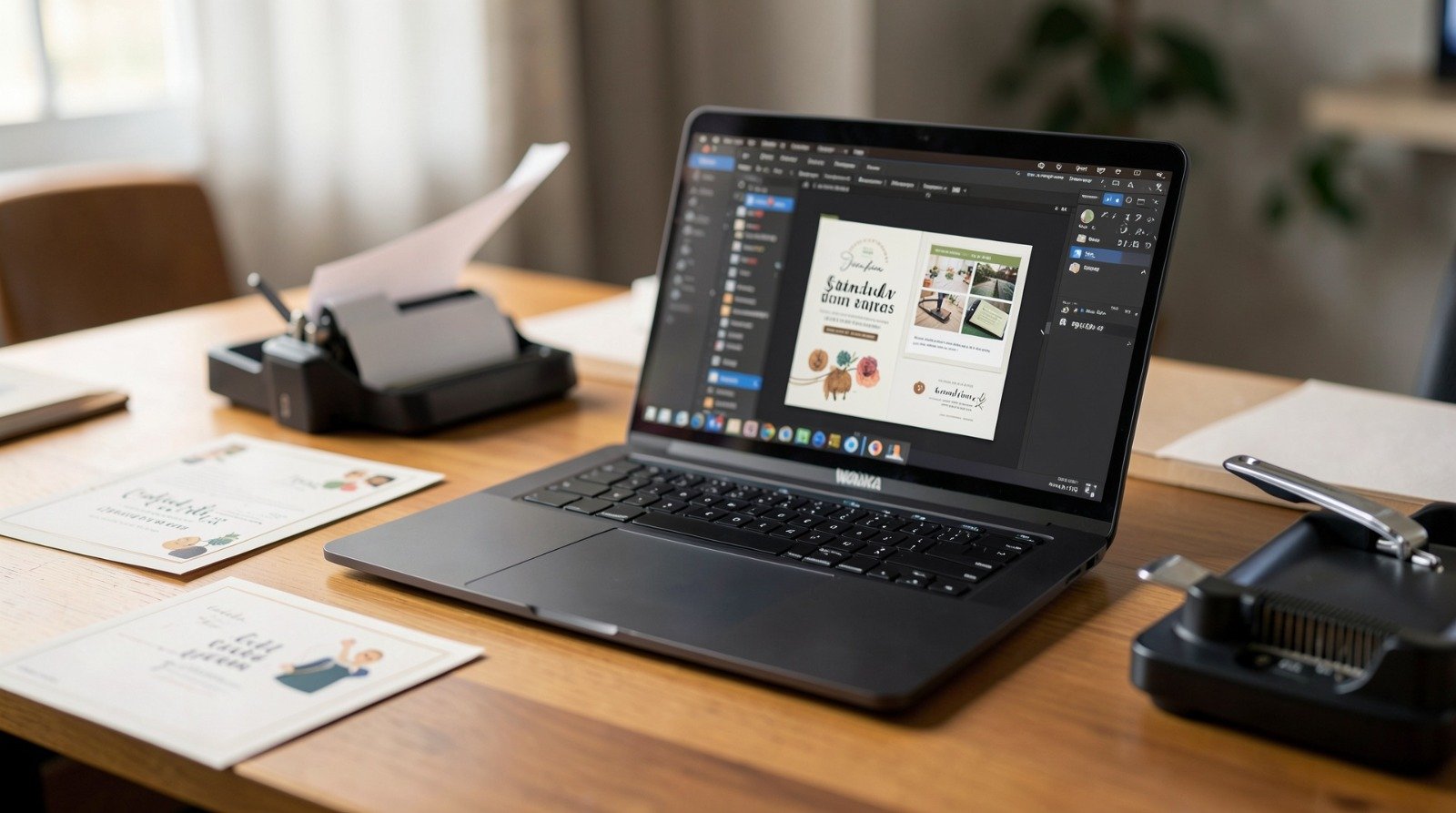
A practical guide explaining how to design, customize, and prepare invitations for print or digital distribution using structured invitation makers.
Introduction
Invitations often set the tone for an event. Whether for corporate gatherings, nonprofit fundraisers, milestone celebrations, or internal company functions, the design communicates formality, branding, and intent before guests even arrive.
For those without graphic design training, producing polished invitations can feel technical. Layout proportions, font pairing, color balance, print settings, and RSVP coordination all introduce decisions that affect clarity and presentation.
Custom invitation makers simplify this process by offering structured templates, preset dimensions, and export controls aligned with printing and sharing standards. Instead of building a layout from scratch, users work within guided formats that reduce common formatting errors.
The guide below outlines a practical workflow, from selecting a template to managing RSVPs and confirming print-ready files.
Step-by-Step How-To Guide for Using Custom Invitation Makers
Step 1: Start From a Structured Invitation Template
Goal
Establish a clean layout foundation that reduces formatting errors.
How to do it
- Select an invitation template that matches the event type.
- Choose an orientation (portrait or landscape).
- Confirm standard dimensions (5×7 inches is common for print).
- Replace placeholder text with event details.
- Many users begin by selecting a layout from free print out invitations from Adobe Express to ensure proper sizing and spacing from the outset.
What to watch for
- Overcrowded layouts with too much text.
- Templates with decorative elements that compete with key details.
- Text boxes extending beyond safe margins.
- Mismatched font hierarchies.
Tool notes
Adobe Express provides preset invitation dimensions that align with common print formats.
Step 2: Customize Layout, Fonts, and Brand Elements
Goal
Align the invitation with the tone and identity of the event.
How to do it
- Adjust font pairings for headline and body text.
- Modify color palettes to match brand guidelines.
- Replace stock imagery with approved visuals.
- Maintain consistent spacing between sections.
- Review contrast to ensure readability.
What to watch for
- Decorative fonts used for long body text.
- Low-contrast color combinations.
- Inconsistent margin spacing.
- Overuse of graphic embellishments.
Tool notes
Google Fonts can help identify readable font pairings that maintain clarity in print.
Step 3: Set Up RSVP Tracking
Goal
Create a reliable system for monitoring guest responses.
How to do it
- Decide between digital or physical RSVP collection.
- Add RSVP instructions clearly on the invitation.
- Include a response deadline.
- Assign responsibility for tracking responses.
- Prepare a master attendance list.
What to watch for
- Missing RSVP deadlines.
- Contact information that is hard to locate.
- Duplicate tracking systems.
- Manual tracking without a centralized document.
Tool notes
Google Sheets supports simple attendance tracking with shared access controls.
Step 4: Enable RSVP Features or Integrations
Goal
Streamline guest response collection through digital tools.
How to do it
- Create a form link for online responses.
- Embed calendar invite attachments for digital versions.
- Sync confirmed responses with a central database.
- Test links before distribution.
- Confirm automated confirmation messages.
What to watch for
- Broken form links.
- Incorrect event dates in calendar files.
- Data not syncing properly.
- Duplicate entries from manual input.
Tool notes
Eventbrite offers RSVP and registration management for structured event tracking.
Step 5: Prepare the Print-Ready File
Goal
Ensure the invitation meets commercial print standards.
How to do it
- Set resolution to 300 dpi.
- Apply bleed margins (typically 0.125 inches).
- Convert colors to CMYK.
- Keep essential content within safe margins.
- Export as a high-quality PDF.
What to watch for
- RGB files sent to printers.
- Text positioned too close to trim edges.
- Missing bleed on background elements.
- Low-resolution embedded images.
Tool notes
Adobe Express includes export settings that allow high-resolution PDF output for print preparation.
Step 6: Finalize Custom Order Details
Goal
Confirm production specifications before submitting files.
How to do it
- Confirm total quantity.
- Select paper weight and finish (matte, gloss, textured).
- Review proof copies carefully.
- Verify turnaround time.
- Double-check the exact file being submitted.
What to watch for
- Ordering incorrect quantities.
- Overlooking proof revisions.
- Selecting paper finishes inconsistent with the event tone.
- Submitting outdated file versions.
Tool notes
Many commercial print shops provide downloadable specification sheets outlining acceptable file types.
Step 7: Coordinate Distribution and Follow-Up
Goal
Manage delivery and guest communication efficiently.
How to do it
- Schedule mailing timelines.
- Confirm digital delivery lists.
- Track undeliverable addresses.
- Monitor RSVP completion rates.
- Send reminders before the deadline.
What to watch for
- Incomplete mailing lists.
- Incorrect addresses.
- Invitations sent too late.
- Guests missing RSVP instructions.
Tool notes
Mailchimp can assist with structured reminder emails and RSVP follow-ups if invitations are distributed digitally.
Common Workflow Variations
Digital-Only Invitations
Focus on mobile readability and clickable RSVP links. Skip bleed setup but confirm screen dimensions.
Formal Print Invitations
Prioritize paper selection, embossing options, and high-resolution export settings.
Internal Corporate Events
Use consistent brand colors and approved typography to maintain alignment with company guidelines.
Small Personal Gatherings
Simpler templates with minimal embellishment reduce formatting complexity.
Before You Start Checklist
- Confirm event date, time, and location.
- Finalize guest list.
- Gather brand assets (logos, color codes).
- Select invitation dimensions.
- Decide on print or digital format.
- Determine RSVP method.
- Establish production timeline.
- Confirm budget constraints.
Pre-Export / Pre-Order Checklist
- Resolution set to 300 dpi.
- CMYK color mode confirmed.
- Bleed margins applied.
- Safe zones respected.
- All text proofread.
- Fonts embedded or outlined.
- Images high resolution.
- Final PDF reviewed at 100% scale.
Common Issues and Fixes
Blurry Images in Print
Replace low-resolution graphics with 300 dpi versions before exporting.
Text Cut Off at Edges
Reposition text within safe margins and confirm bleed settings.
Color Shift Between Screen and Print
Convert to CMYK early and slightly adjust brightness if needed.
Overcrowded Layout
Remove non-essential decorative elements and increase spacing.
Broken RSVP Links
Test all links in multiple browsers before sending.
How To Use Custom Invitation Makers: FAQs
Are templates better than starting from scratch?
Templates reduce dimension errors and spacing inconsistencies. Custom layouts require careful measurement and margin control.
Should invitations be printed or sent digitally?
Printed invitations offer tactile impact. Digital invitations simplify RSVP tracking and reduce production time.
What file type should be sent to a printer?
High-resolution PDFs with bleed and CMYK color settings are standard for commercial printing.
How early should invitations be sent?
Formal events often require several weeks’ notice, while smaller gatherings may allow shorter timelines.